Set Smart Heating Schedules with Aqara TRVs
In just 60 seconds, learn how to set up smart heating schedules for your Aqara Temperature Control Valves (TRVs) using the Aqara app. This guide covers creating daily schedules, utilizing modes like Home & Away, and tips for smooth automation with your heating system.
What You’ll Need
To get started, make sure you have the following Aqara devices:
- Aqara TRVs (e.g., W600): https://geni.us/3Kndq
- Aqara M3 Hub or Budget Hub: https://geni.us/dY4D7 or https://geni.us/Mi36
- Aqara Temperature & Humidity Sensor (optional): https://geni.us/jCAJE
- Aqara T2 Relay Module (for connected boilers): https://geni.us/VYZV3Eq
Creating Daily Schedules
Follow these steps to create daily schedules for your TRVs:
- Open the Aqara app and tap on ‘Devices’ at the bottom.
- Tap on the TRV you want to schedule.
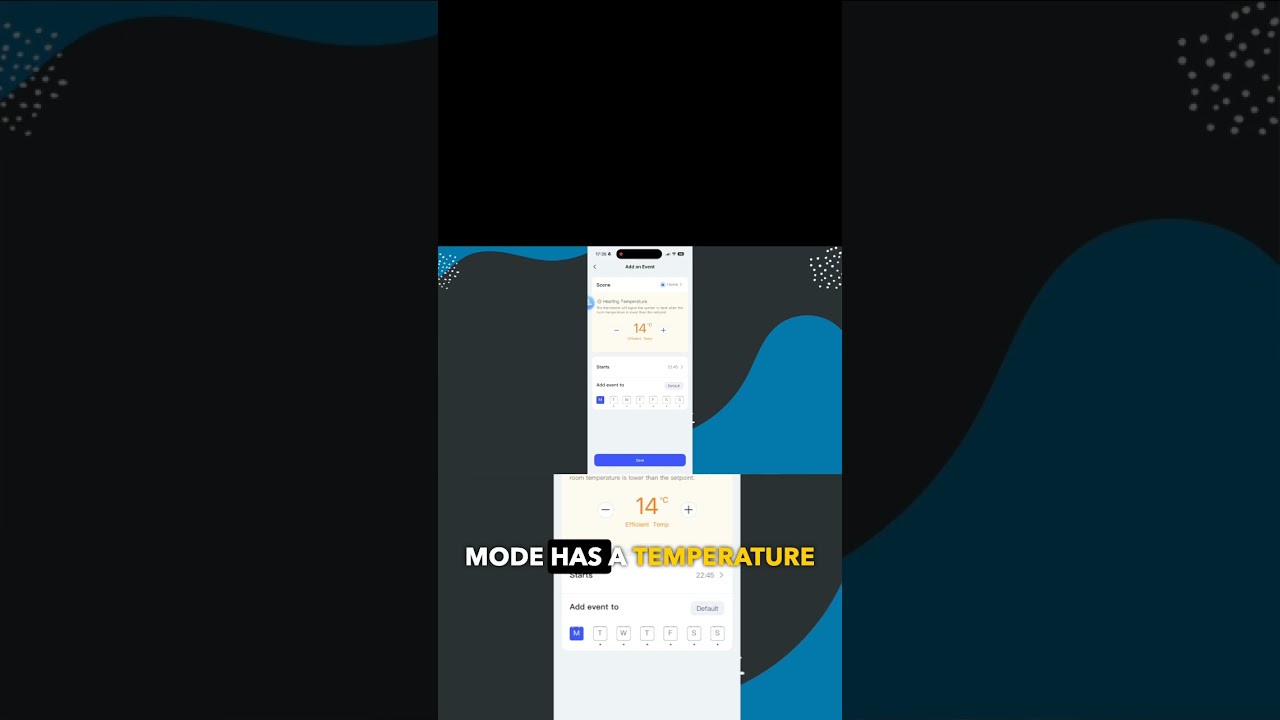
- Tap on ‘Schedule’ in the top right corner, then ‘Create Schedule.’
- Choose your desired schedule type (e.g., Daily or Weekday).
- Set your preferred temperatures for different times of day.
- Tap ‘Save’ to apply your new schedule.
Using Home & Away Modes
Effortlessly manage your heating system using Home and Away modes:
- Open the Aqara app and go to the ‘Modes’ tab at the bottom.
- Tap on ‘Create Mode.’
- Name your mode (e.g., Home or Away) and set your desired temperatures.
- Tap ‘Save’, then assign your new mode to specific triggers like ‘Everyone leaves home’ or ‘Someone arrives home’.
Tips for Smooth Automation
For optimal performance:
- Place the Temperature & Humidity Sensor in a central location.
- Ensure your TRVs and other Aqara devices are properly connected to the hub.
- Regularly update firmware for all your Aqara devices.
