
If you’ve ever had to reset a smart home accessory, you’ll know the moment. The fix is “reset it and add it back to Apple Home”, and the setup code you need is on a sticker on the back of something that’s screwed to the wall. Or it was on the box, and the box went in the recycling two years ago.
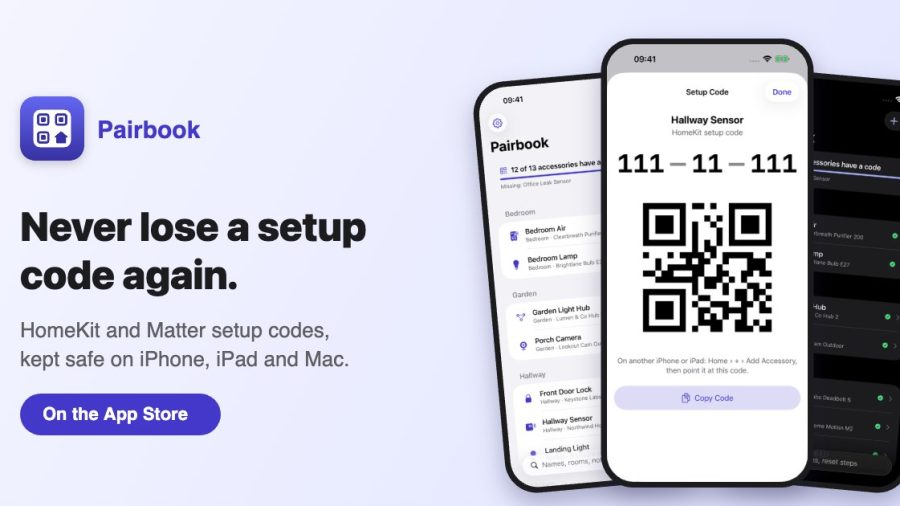
That’s the problem my new app, Pairbook, solves. It keeps every HomeKit and Matter setup code with the accessory it belongs to, on your iPhone, iPad and Mac.
Full disclosure: I made it. So this isn’t a review, but a look at what it does and why I think every Apple Home user should sort their codes out before something breaks.
Pairbook: The Quick Verdict
What it is: A vault for your HomeKit and Matter setup codes, plus the details you always lose
Price: Free for up to 15 codes. Pairbook Pro is a one-off £4.99, with no subscription
Works with: Accessories in Apple Home, on iPhone, iPad and Mac
Best for: Anyone with more than a handful of smart home accessories
Skip it if: You only have a couple of accessories and still have the boxes
Why setup codes matter
Apple Home can’t show you a setup code again once an accessory is paired, and no app can read it from your home either. You need the code whenever you re-pair: after a reset, a firmware problem, a new hub, moving house, or selling an accessory on.
Most of the time that means finding the original sticker. That’s fine for a smart plug. It’s less fine for a light switch, a radiator valve or a sensor stuck to the top of a door frame.
Scan once, keep it for good
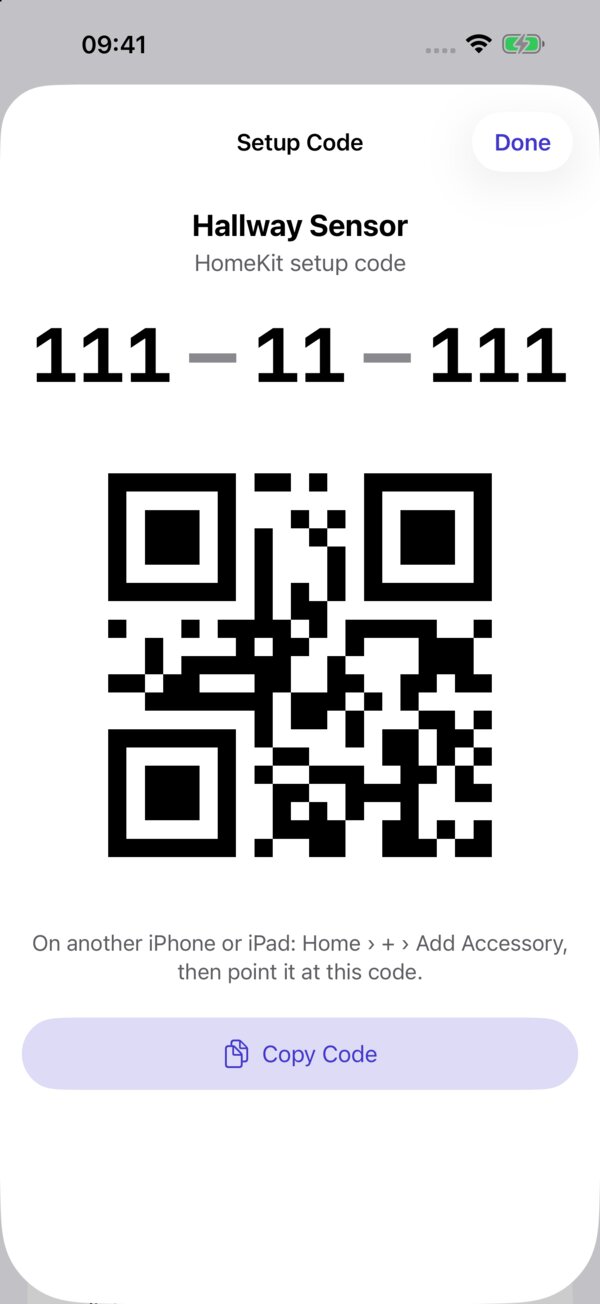
Pairbook scans HomeKit and Matter QR codes, or the printed digits, even on a scuffed or shadowed label. Every code is checked before it’s saved. HomeKit never issues codes like 111-11-111, and Matter codes end in a check digit, so a misread digit shows up straight away.
It then suggests which accessory the code belongs to, so it’s linked to the right device in the right room.
See what’s missing
My favourite part is the coverage count: “31 of 38 accessories have a code”. It’s a simple to-do list for getting your home sorted.
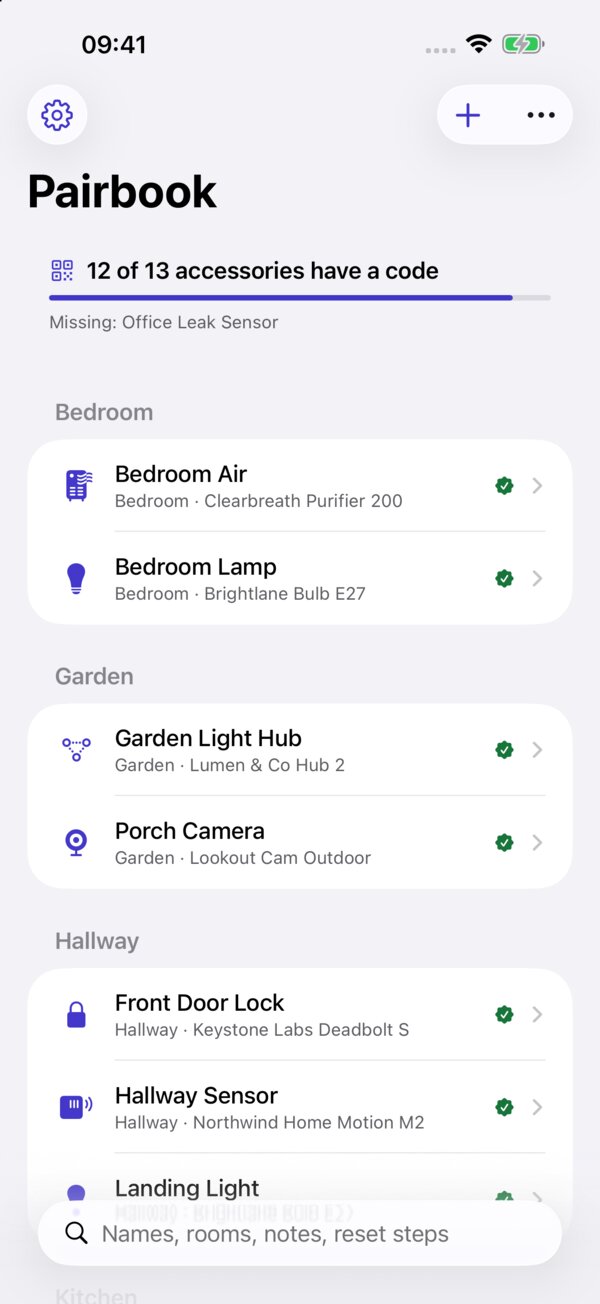
It’s also clever about bridges. Lights behind a hub, like a Hue Bridge, don’t have codes of their own because you re-pair the hub. Pairbook counts the hub once and shows which accessories it covers. In my home, 52 of my 93 accessories are bridged, so I need 41 codes, not 93.
Ready when you need it
When it’s time to re-pair, Pairbook shows the code large and redraws the original QR code on screen. You can then point the Home app on another iPhone or iPad at your screen and scan it straight off. There’s also an Add to Home button that copies the code and opens Apple’s add-accessory screen.
After you re-pair, Apple Home gives the accessory a new identity. Pairbook notices and offers to re-link the code, so everything stays matched up.
Everything else you lose
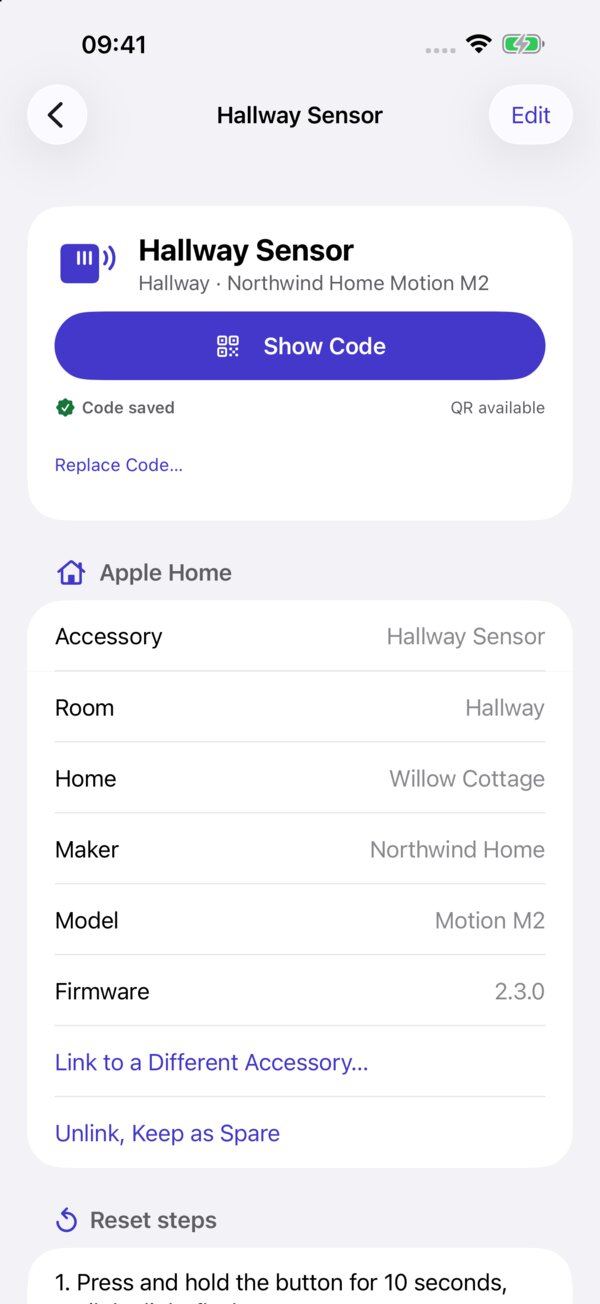
While you’re at it, Pairbook can keep photos of the sticker, box and receipt, the manual, warranty details, battery type and reset steps. It’ll remind you before a warranty ends or a battery is due.
Privacy
Setup codes are worth keeping safe, so Pairbook is locked with Face ID or Touch ID and hidden in the app switcher. It syncs through your own iCloud with codes end-to-end encrypted. There are no accounts, no servers and no tracking.
Pricing
Pairbook is free for up to 15 codes, including scanning, linking, the lock and search. If you go over, nothing is hidden or deleted.
Pairbook Pro is a one-off £4.99. It adds unlimited codes, photos and attachments, warranty and battery details with reminders, a printable home binder, CSV export and sync to your iPad and Mac. One purchase covers all your devices, and Family Sharing is included.
Download Pairbook
Pairbook is on the App Store: Download Pairbook
There’s more on the Pairbook website. Over the next few weeks I’ll be posting a couple of guides on backing up your setup codes and re-pairing accessories, so keep an eye out.
Pairbook works with Apple Home. It isn’t made or endorsed by Apple.
