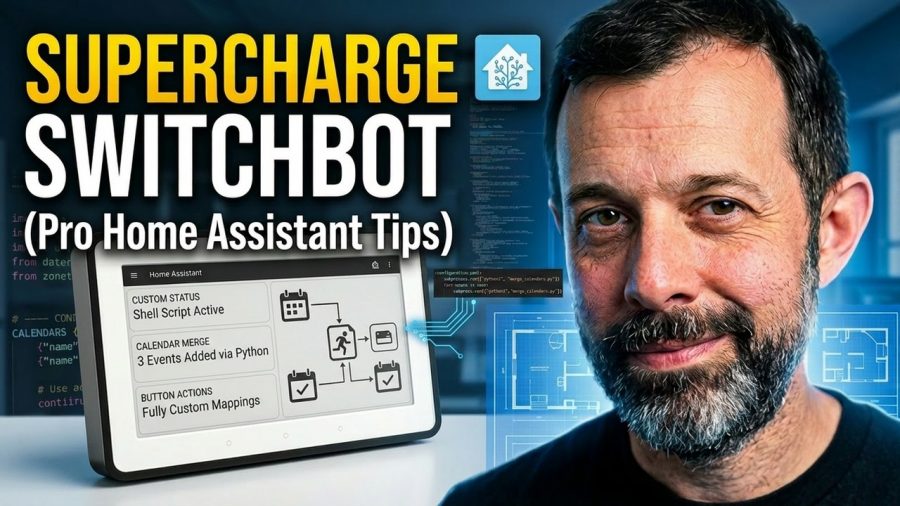
Upgrade your SwitchBot e-ink display with custom scripts. Get more from your smart home by adding camera feeds and calendar data.
Purchase Links:
Amazon: https://geni.us/2mI2kV
Switchbot: https://bit.ly/4aEbUtI (Save 10% with code: 10UPC1YC74OTNK)
Switchbot Hub: https://geni.us/zzvBBF
Links:
Calendars Breakdown: https://github.com/marktiddy/home-assistant-tutorials/blob/main/switchbot-weather-station-merge-calendars.md
Custom Screens Breakdown: https://github.com/marktiddy/home-assistant-tutorials/blob/main/switchbot-weather-station-custom-screens-api.md
This guide demonstrates how to configure your SwitchBot e-ink display beyond its factory settings. If you want to integrate complex data streams or automate your home dashboard, these technical steps provide the framework to make it happen. We walk through the necessary data processing adjustments to ensure your device displays the information most relevant to your daily routine.
By implementing these custom scripts, you gain control over what appears on your screen. We cover the specific process for merging calendar events and camera integration, turning a standard smart home peripheral into a central monitoring hub. This walkthrough is intended for users comfortable with light technical configuration who want to push the boundaries of their current SwitchBot setup.
Subscribe for weekly smart home automation tutorials, and comment below if you want to see a specific guide on integrating other devices next.
Chapters:
0:00 Introduction
01:17 Customised Buttons via Matter and Home Assistant
03:26 Using the SwitchBot API for Custom Screens
06:06 Merging Family Calendars
Shop Tech I Recommend: https://linktr.ee/markstechvlogs
🔔 Subscribe for more smart home & tech reviews!
👍 Like & Share if you found this helpful!
https://www.youtube.com/markstechvlogs
Connect with me:
Found this helpful? Buy me a Coffee: http://buymeacoffee.com/marktiddy
Instagram: https://www.instagram.com/marktiddy
Email: [email protected]
